

Required permission:
- View data source and View data type
- Create data, Edit data source, Delete data source to change records
- Export Data Source to export
The record list
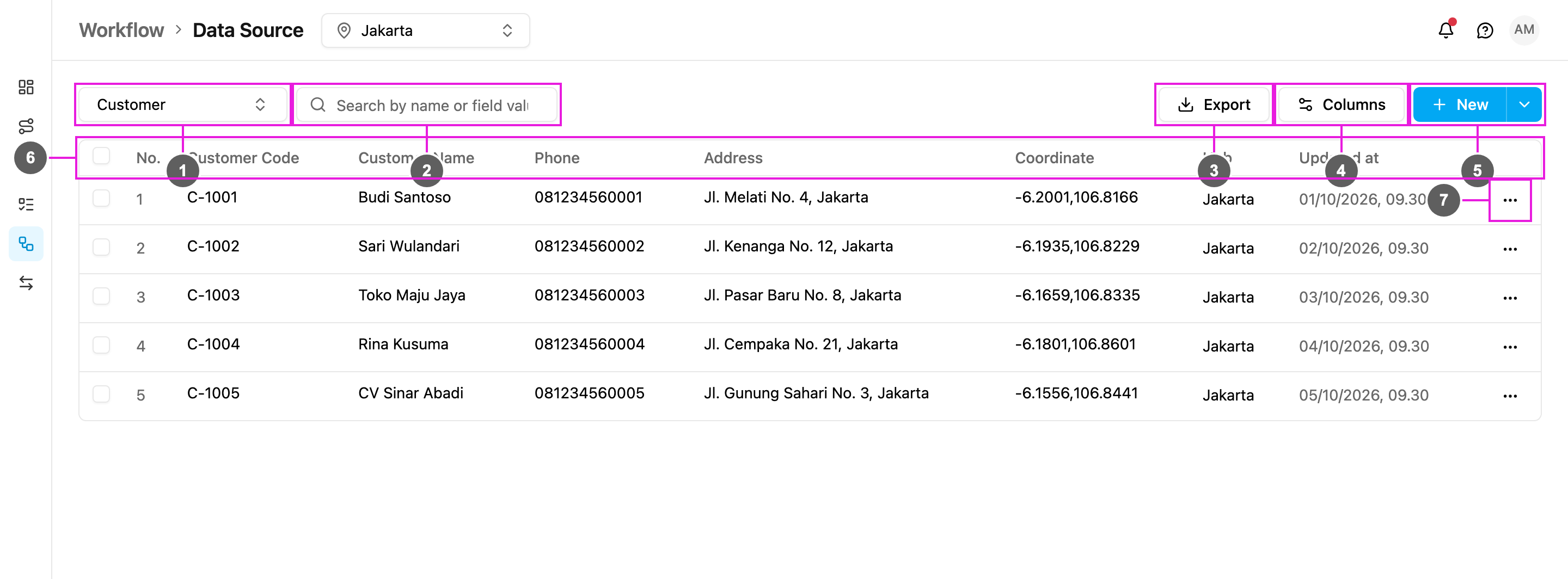
- Data type: which data type’s records to show. The page opens on the first data type that isn’t Master Data.
- Search by name or field value: find records. The search matches the value of every field of the record, and a code typed with one separator also finds it written with another, so PT-001 finds PT_001 and PT 001. For a Relation field marked Searchable, it also matches the title of the linked record.
- Export: download the records as a spreadsheet. See Export.
- Columns: choose which fields are shown as columns, and their order.
- New: add one record. The arrow beside it (More create options) opens Bulk, to add or edit many records at once. See Adding records and Bulk add and edit.
- The table. Its columns are:
- A checkbox, to select records for bulk delete.
- No.: row number.
- One column for each field that is shown on the table. Here Customer Code, Customer Name, Phone, Address and Coordinate.
- Hub: the hubs the record belongs to. Only for data types limited by hub.
- Limit Data by User: who can see the record. Only for data types with Limit Data by User on.
- Updated at: when the record was last changed.
- More actions (⋯): View, Edit and Delete the record.
Pick a data type
Click the data type picker to switch data type. Type to search the list.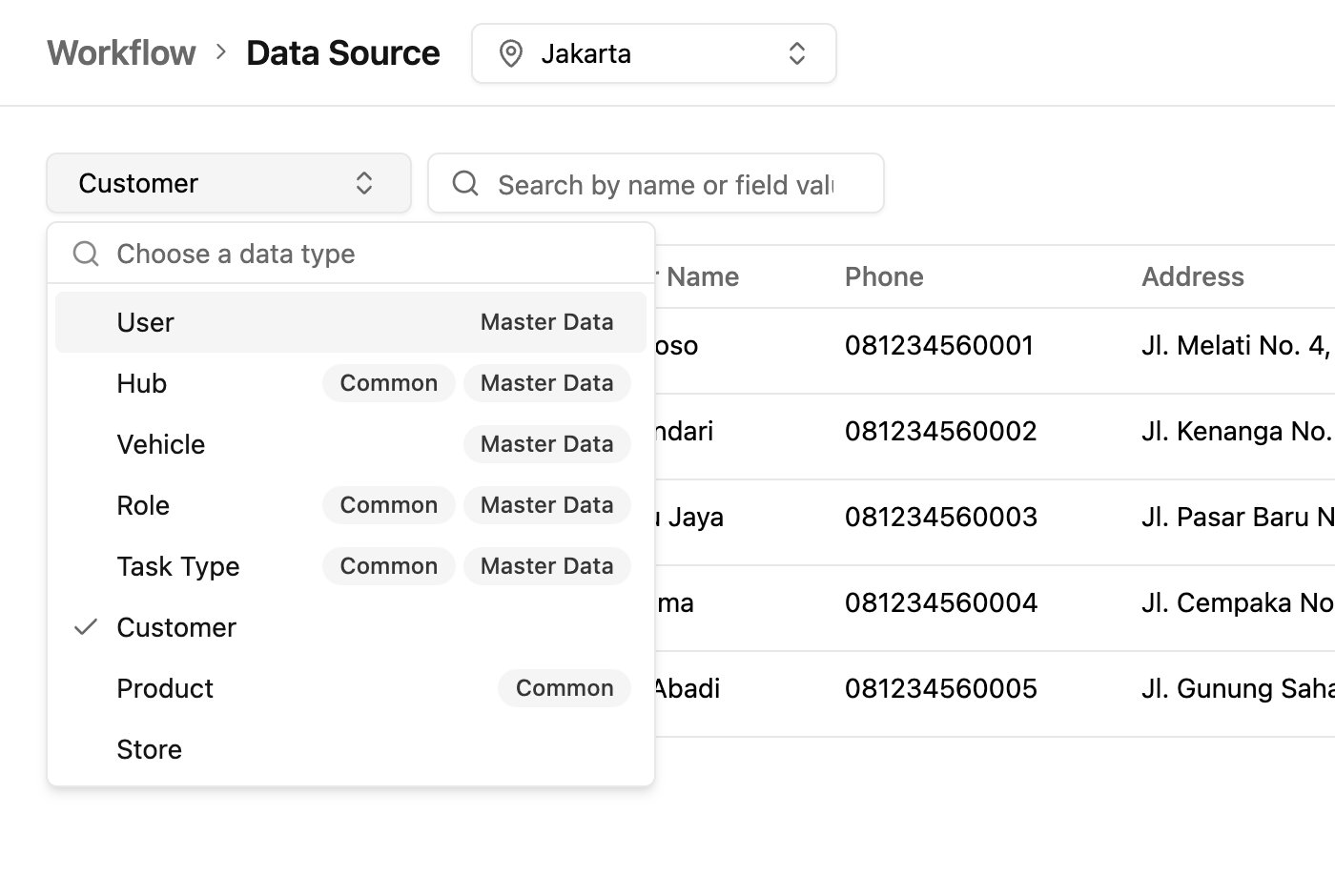
- Common: the data type is shared by every hub.
- Master Data: a built-in data type (User, Hub, Vehicle, Role, Task Type). All five are always listed, even before you add fields to them. Its records hold your extra information about each user, hub and so on. See Linked records.
Choose the columns
Click Columns.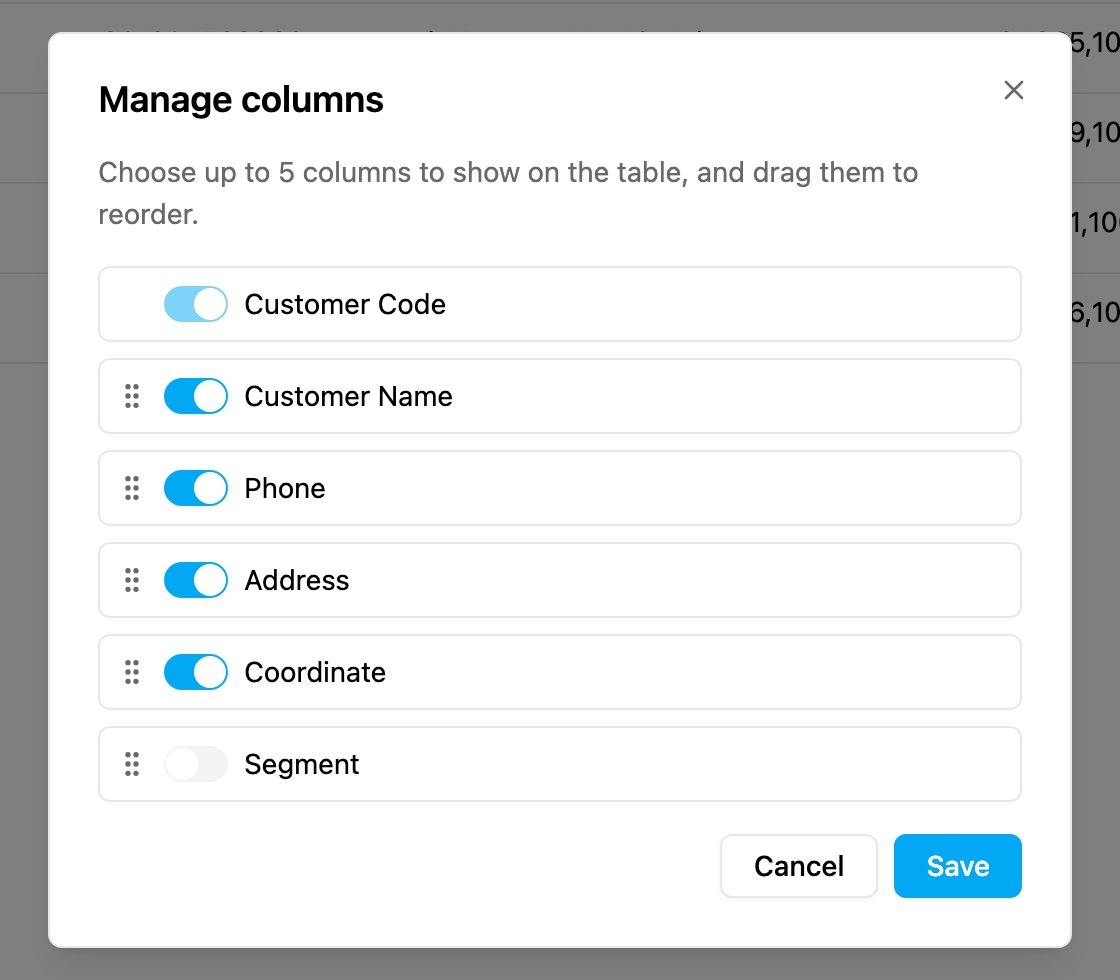
A data type with links
This Store data type links each store to a Customer and limits each store to chosen users: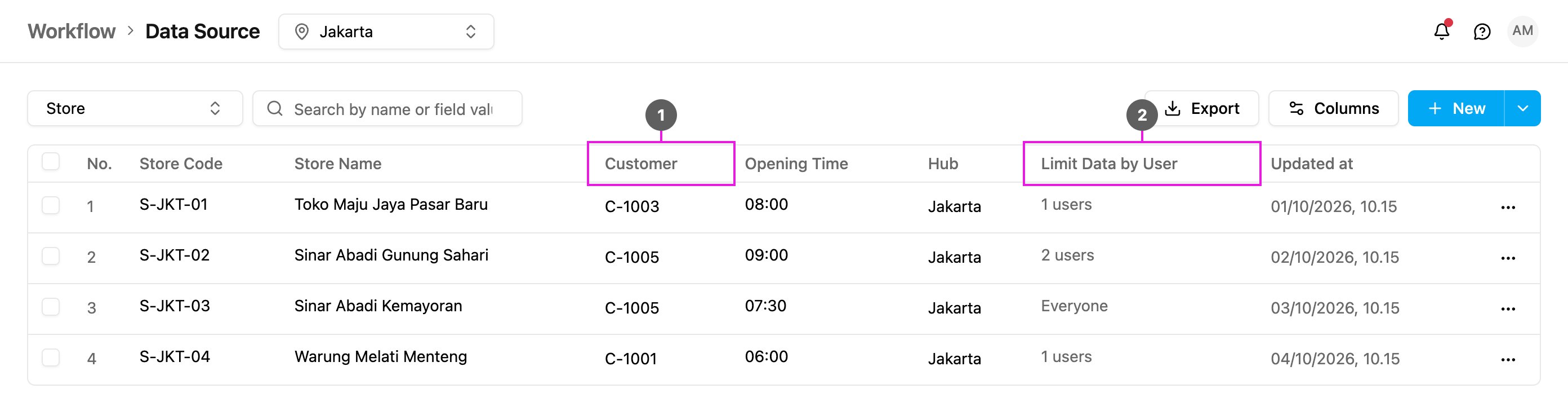
- Customer: a Relation field. It shows the linked customer. See Linked records.
- Limit Data by User: Everyone, or the number of users who can see the record, for example 2 users.