

Required permission:
- View task
- Create task
- Assign task (to pick an assignee while creating)
Create one task
- Open Activities › Task and click New.
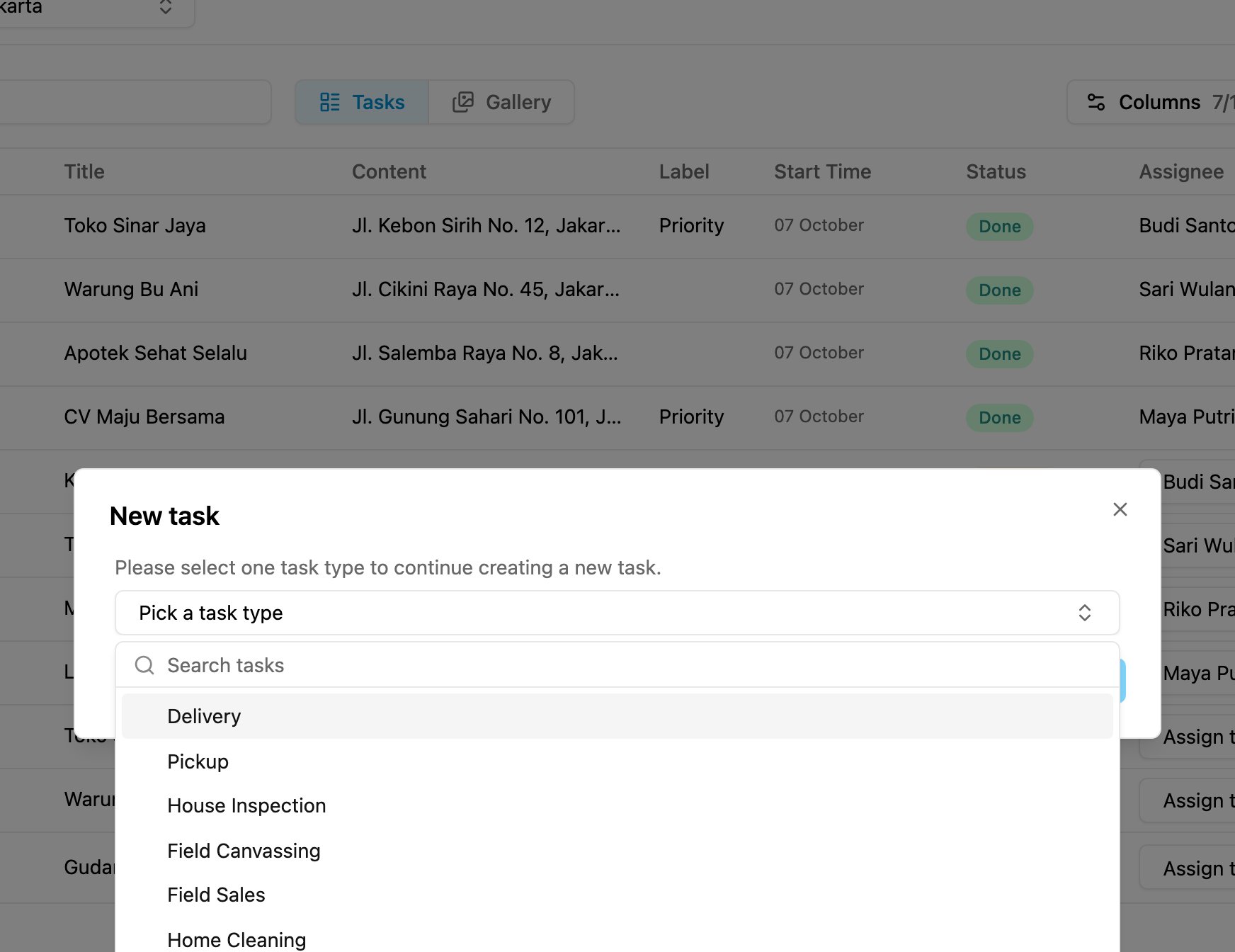
- Pick the task type the task belongs to. The task type decides which fields the task carries, so it is chosen first.
- Fill in the form. It shows the fields of the task type’s initial page, the page that is filled in from the web.
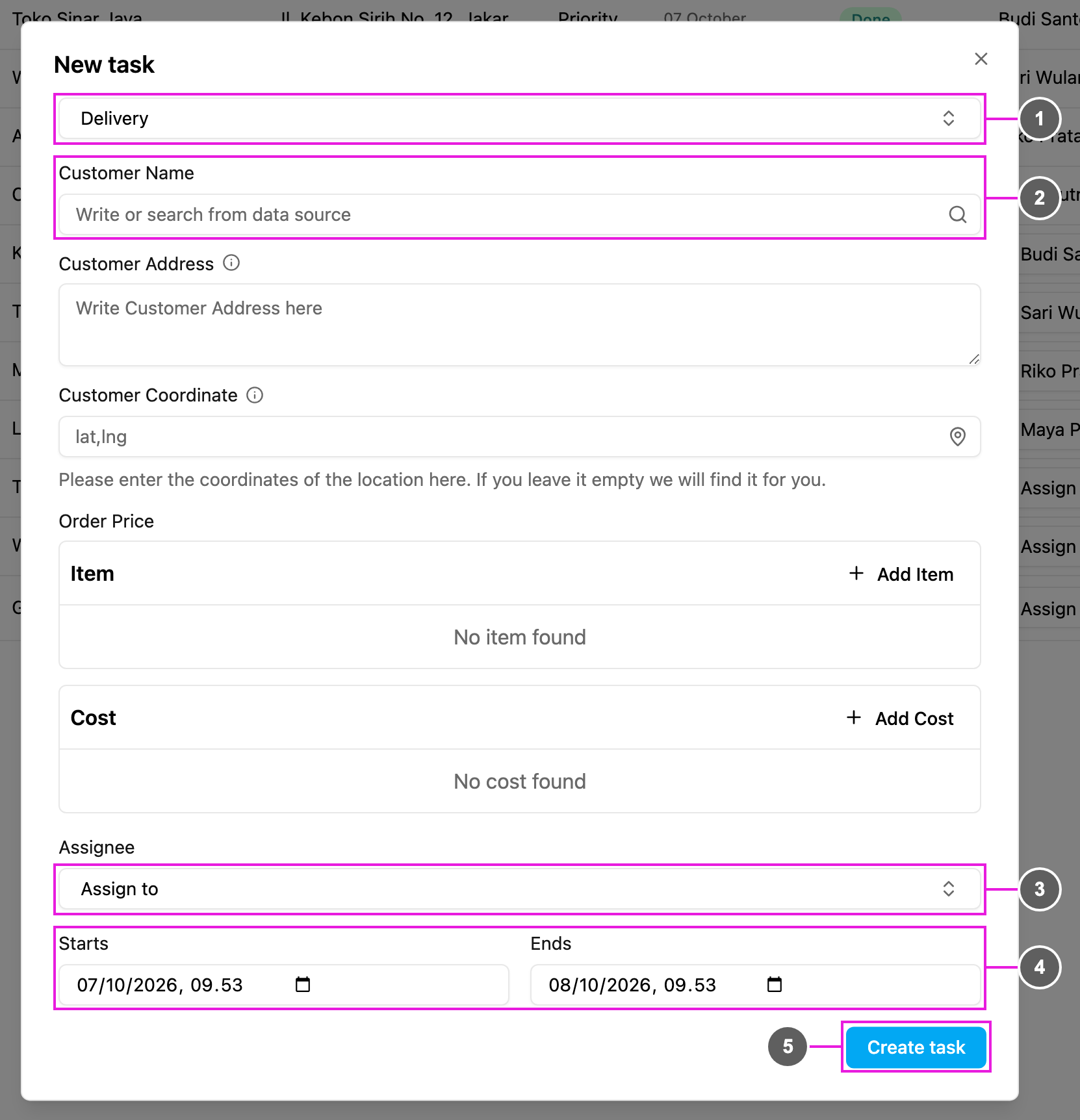
- Task type: the task type you picked. Change it to switch to another form.
- Fields: the fields of the initial page. They differ per task type: text, numbers, dates, addresses, coordinates, choices, lists, bills and more. See Components.
- Assignee: pick one or more people to give the task to right away. Leave it empty to create the task as Unassigned and assign it later.
- Starts / Ends: the time window of the task. They are filled in from the task type’s time configuration; change them for this task if you need to.
- Create task: create the task.
What you see while filling in
- A field the task type marks as required shows “This task type requires an answer here.” until it is filled in.
- Starts must be earlier than Ends.
- A field fed by a data source shows Click here to choose the data for this task: pick a row from the data source and its values fill the form.
- If the task type’s initial page is turned off, the form says so and the task is created with only its time window and assignee.
- Fields the web form cannot fill in are listed under “Left for the field app to answer”; the field worker fills them in on the field app.
- If you close the form after changing something, Discard changes? asks before your input is lost.
Create tasks on the field app
Field workers can also create a task on the go, which is handy when the work is not planned in advance:- In the field app, tap + in the middle of the bottom menu.
- Pick the task type.
- Fill in the first page.
- Tap Create Task.