

In the previous version a task type was called a Flow. The components and their properties carry over unchanged unless a component page says otherwise.
Adding a component
Open a task type in Workflow › Task Type and click Add component at the end of a page. The menu shows the components that page allows.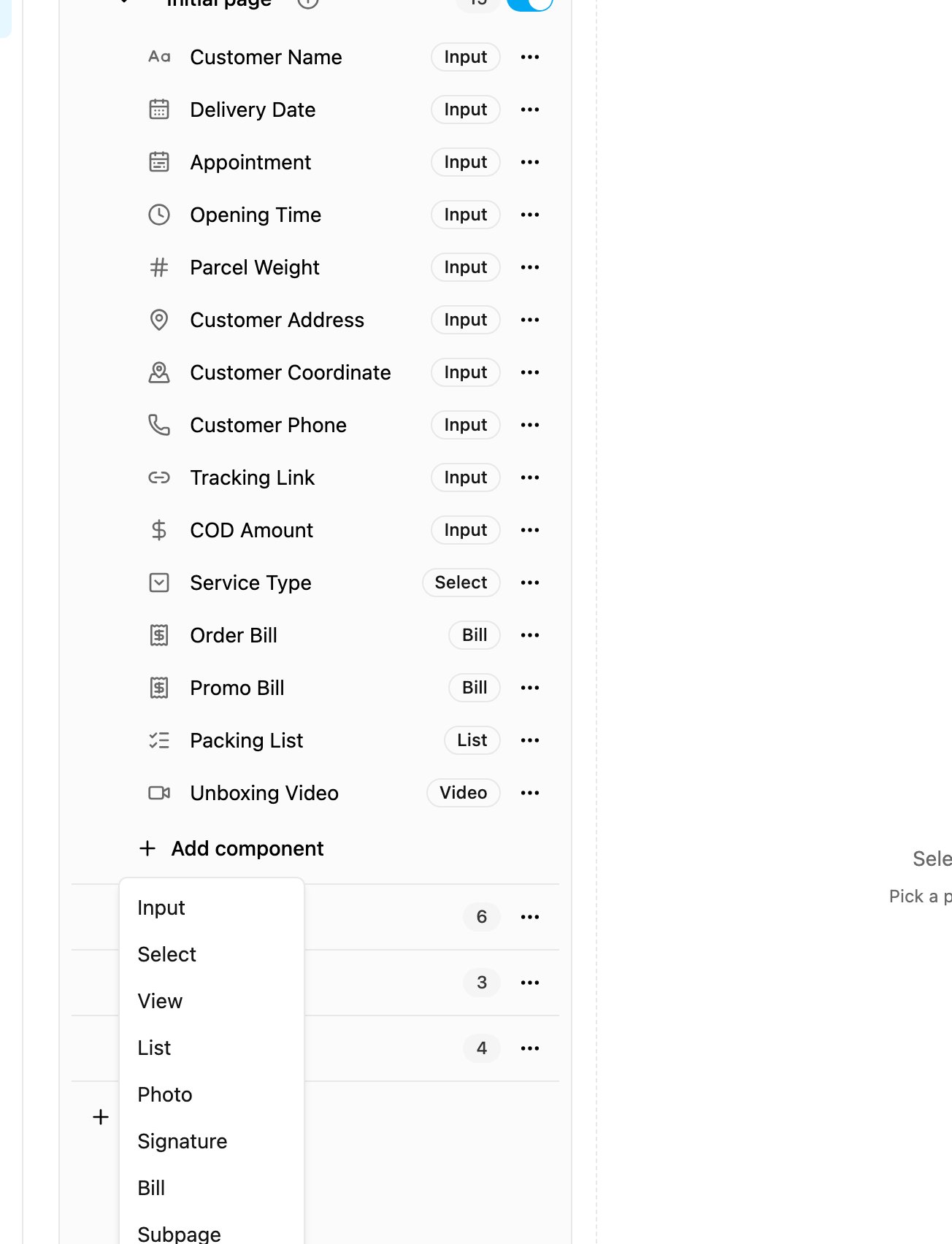
On the Initial page: Input, Select, View, List, Photo, Signature, Bill and Subpage.
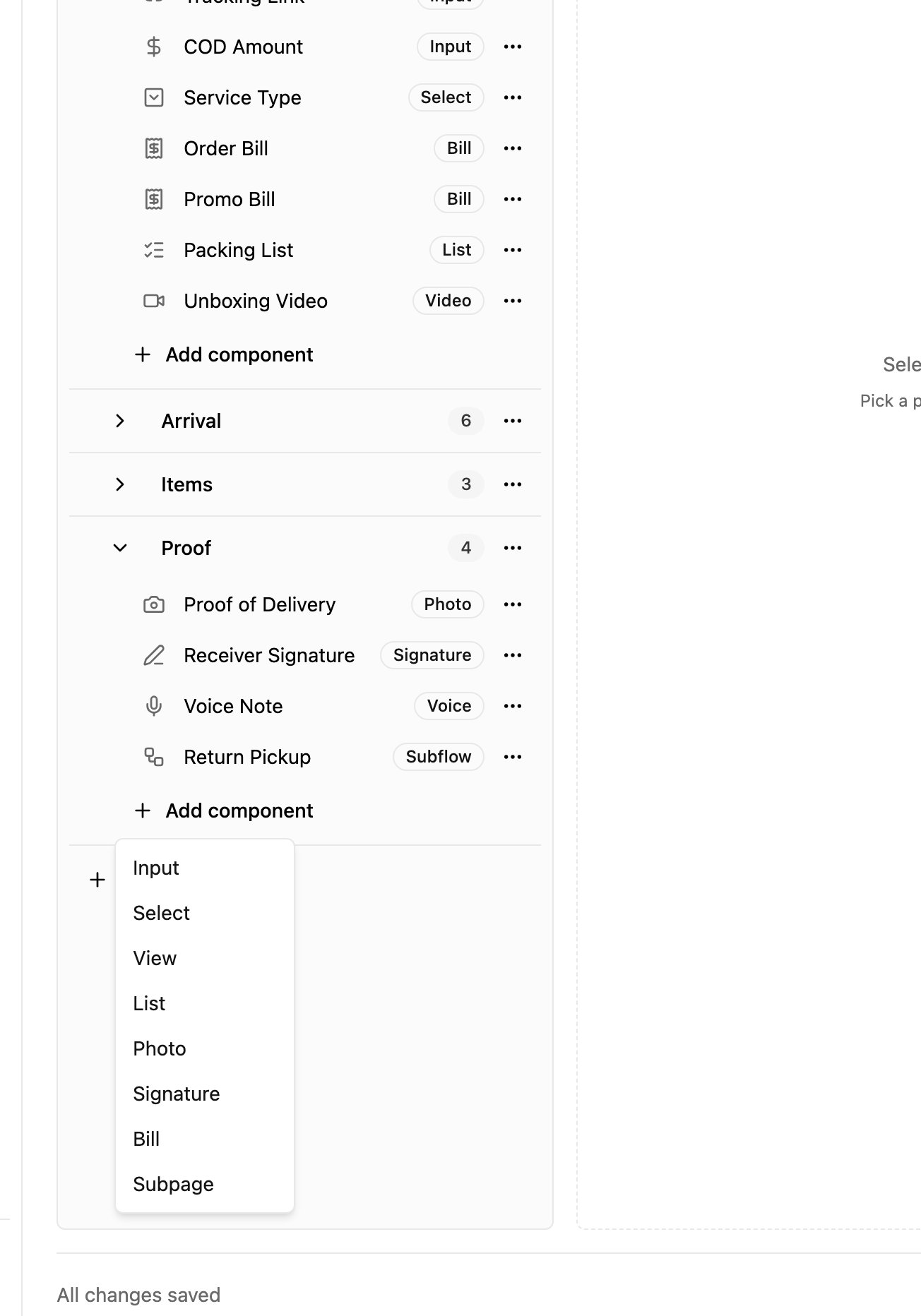
On a field app page (Page 1, 2, 3…): Timer, Voice, Capture and Subflow are added to the list.
Click a component in the page tree to open its properties in the middle of the screen. The Mobile app preview on the right shows how the page looks on the field app, and updates as you change properties. Changes are used only after you click Save.All components
Properties every component shares
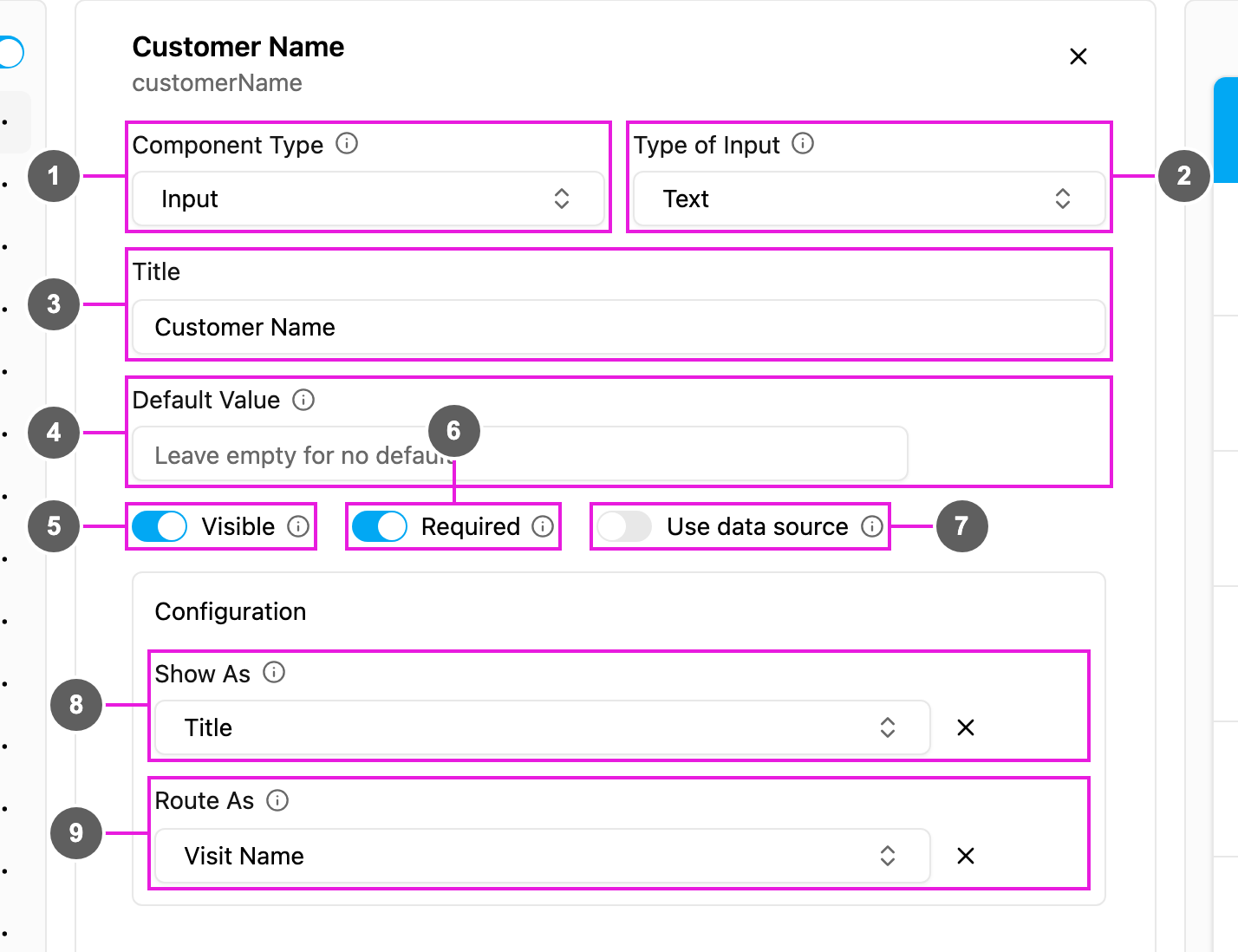
- Component Type: the kind of component. Changing it rebuilds the component with the new type’s properties; its title and ID are kept.
- Type of …: for Input, Select, View, List and Capture, the variant of the component (for example Type of Input: Text).
- Title: the label shown above the component. The ID under the component name is created from the title and is how other components, imports and the API refer to it.
- Default Value: a value filled in for every new task. Leave it empty for no default.
- Visible: when off, the component is hidden on the web and the field app, but its data is still kept and exported. A Select on-select action can show it again.
- Required: the task cannot be saved or finished until the component is filled in.
- Use data source: fill the component from your data source records instead of typing.
- Show As: show the value in the task list as the task’s Title, Content or Label. Each option can be used by one component per task type; picking one that another component uses asks you to confirm before it moves.
- Route As: on the Initial page, pass the value to route planning as a visit property, such as Visit Name or Coordinate. See Routing.
Limits
- Your plan sets how many components a task type can hold. Components inside a Subpage do not count toward the limit. When you reach it, Add component and Save tell you so.
- Each field app page can have one Timer.
- A Subflow cannot go on the Initial page.
- A Subpage cannot hold another Subpage, a Timer, a Voice, a Capture, a Video or a Subflow.