

Required permission:
- View task
- Edit task (to make changes)
Open a task
Click a row, or click Task actions (the … button at the end of the row) and choose an action.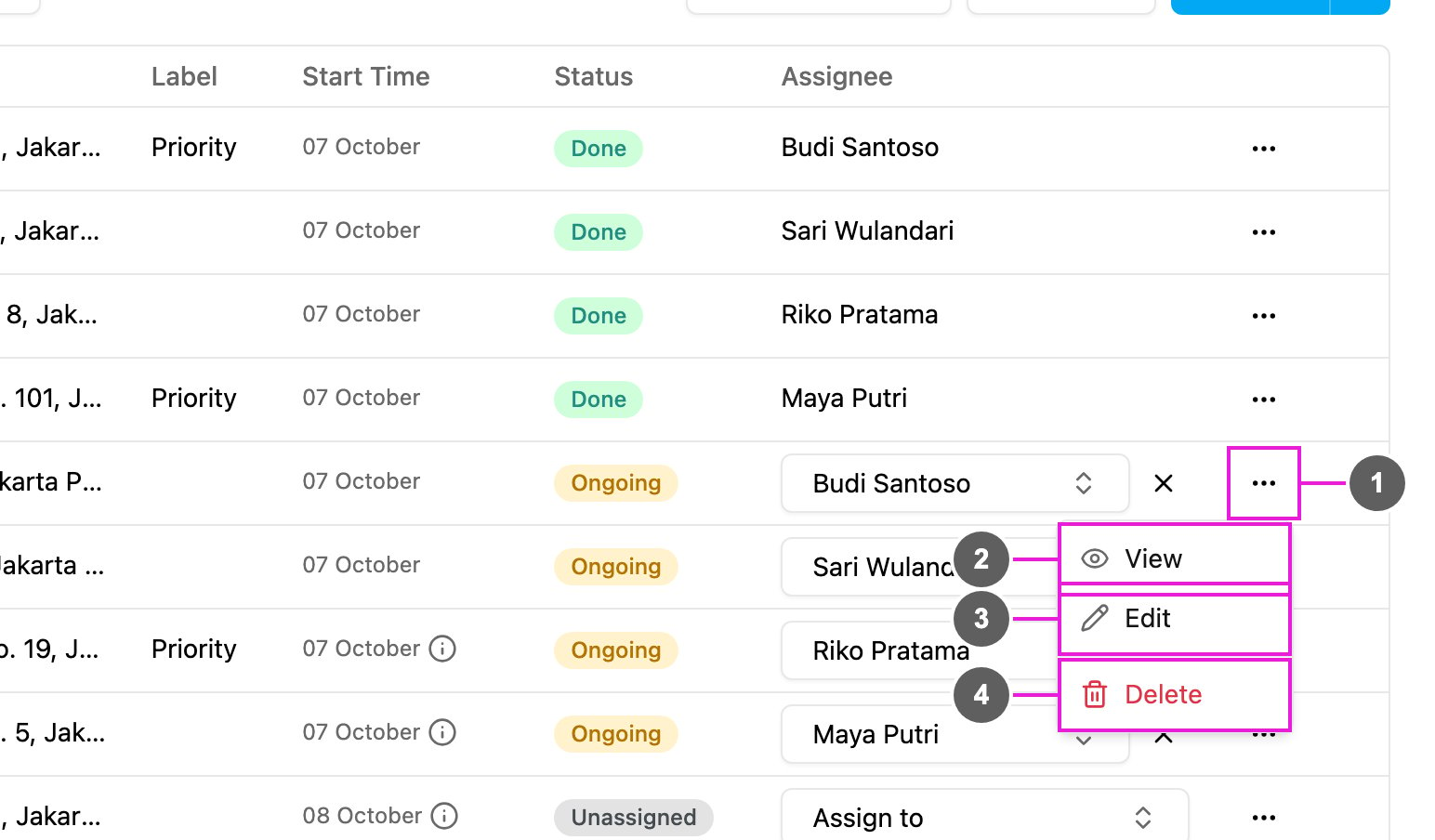
- Task actions: the menu of the row.
- View: open the task’s details.
- Edit: open the task ready to change. Not offered for a done task.
- Delete: remove the task. See Deleting a Task.
The task detail
Detail Task opens on the side of the list.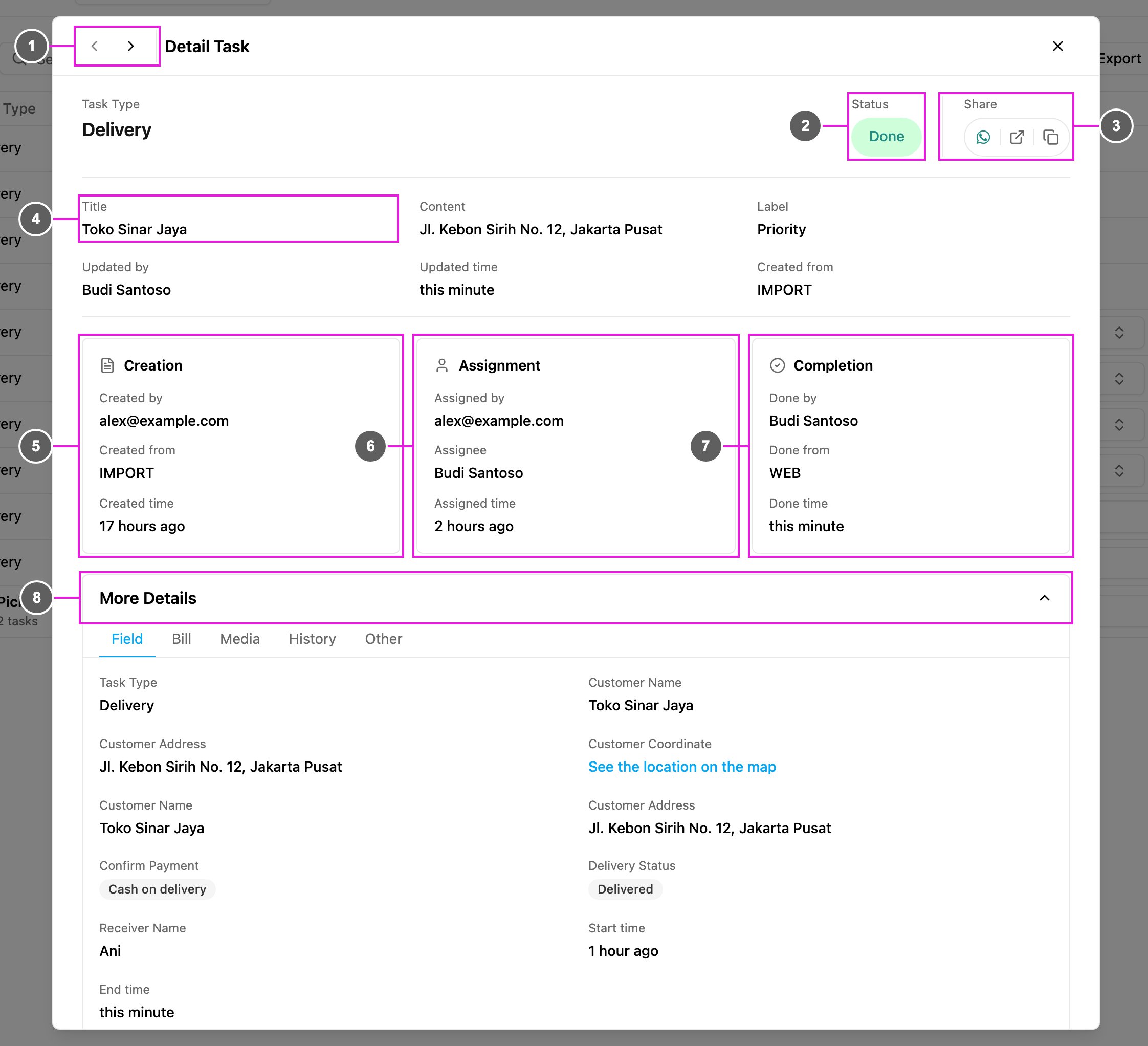
- Previous task / Next task: move through the list without closing the detail.
- Task type and status: the task type the task belongs to and its status.
- Share: Share by WhatsApp, Copy link to the task’s public tracking page, or Copy task ID.
- Overview: the title, content, label and the latest update.
- Creation: who created the task, from where (WEB, IMPORT, MOBILE and so on) and when.
- Assignment: who assigned the task, to whom, and when.
- Completion: who finished the task, from where (MOBILE or WEB) and when.
- More Details: show or hide everything captured on the task, in tabs.
More Details
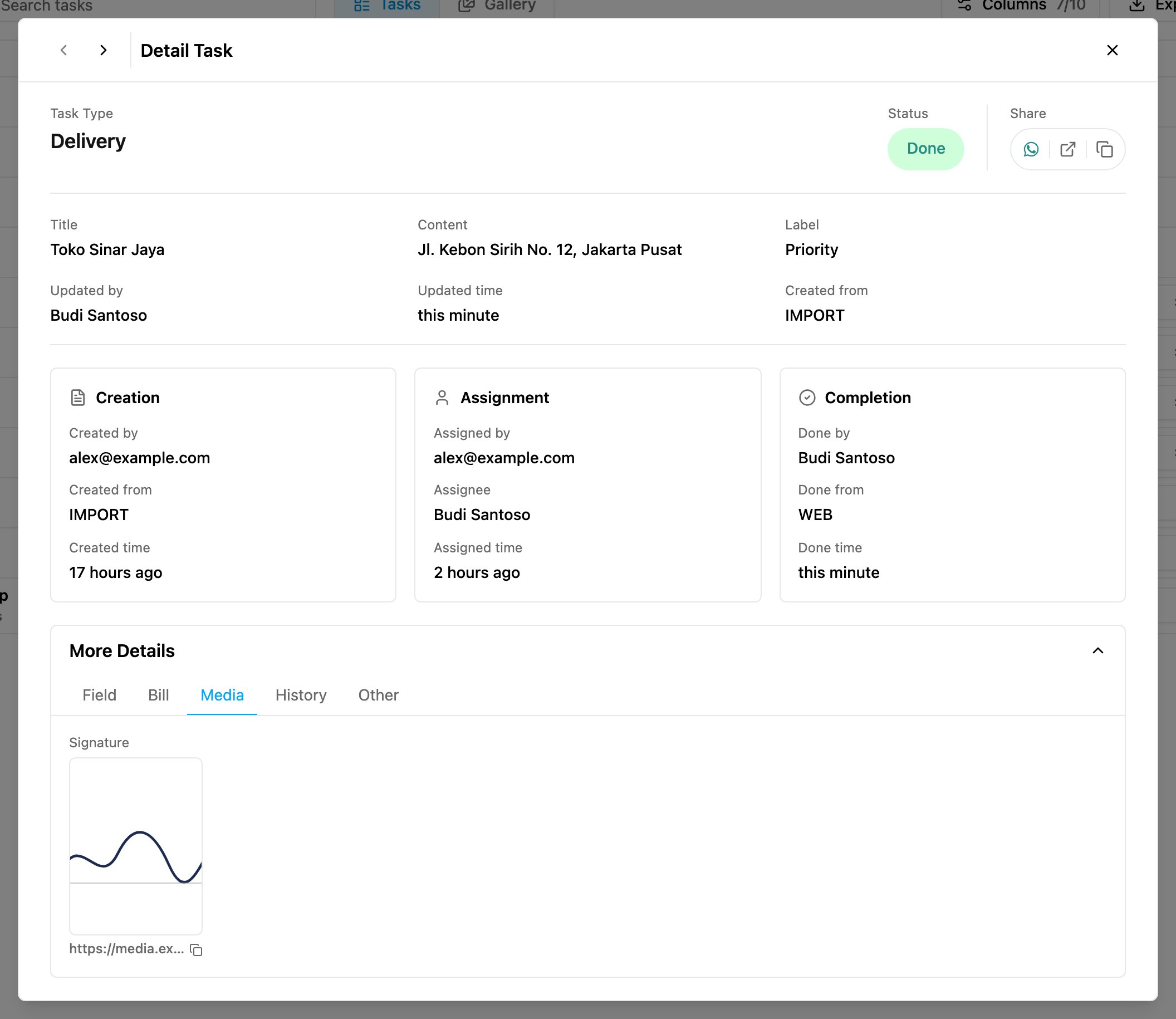
Most of these values only appear after the field worker finishes the task.
A subtask opens as Subtask Detail, with View master task to jump to its main task.
Edit a task
Choose Edit from Task actions. Edit task opens with the task’s current values.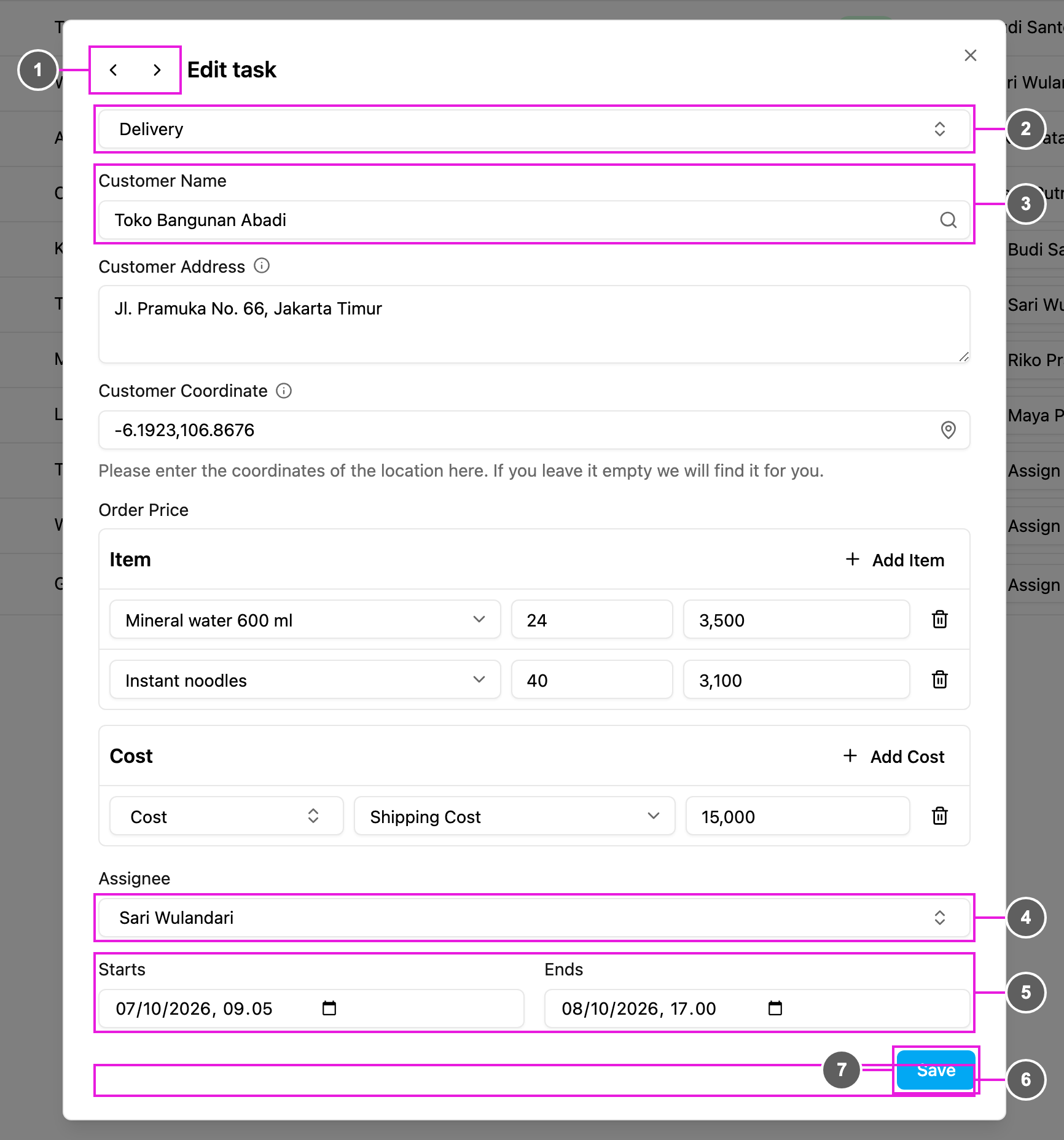
- Previous task / Next task: move to the next task to edit.
- Task type: the task type cannot be changed on a task that already exists. A task shared to you by another organization keeps its task type locked.
- Fields: change the values of the initial page, as when creating a task.
- Assignee: change who has the task.
- Starts / Ends: change the time window.
- More Details: the task’s Task Information, Bill and Other values, read only.
- Save: save your changes.