

Required permission:
- View automation
- Create automation
Before you start
You need a URL that can receive the payload (an HTTP POST with a JSON body).Set it up
On Workflow › Automation, click New.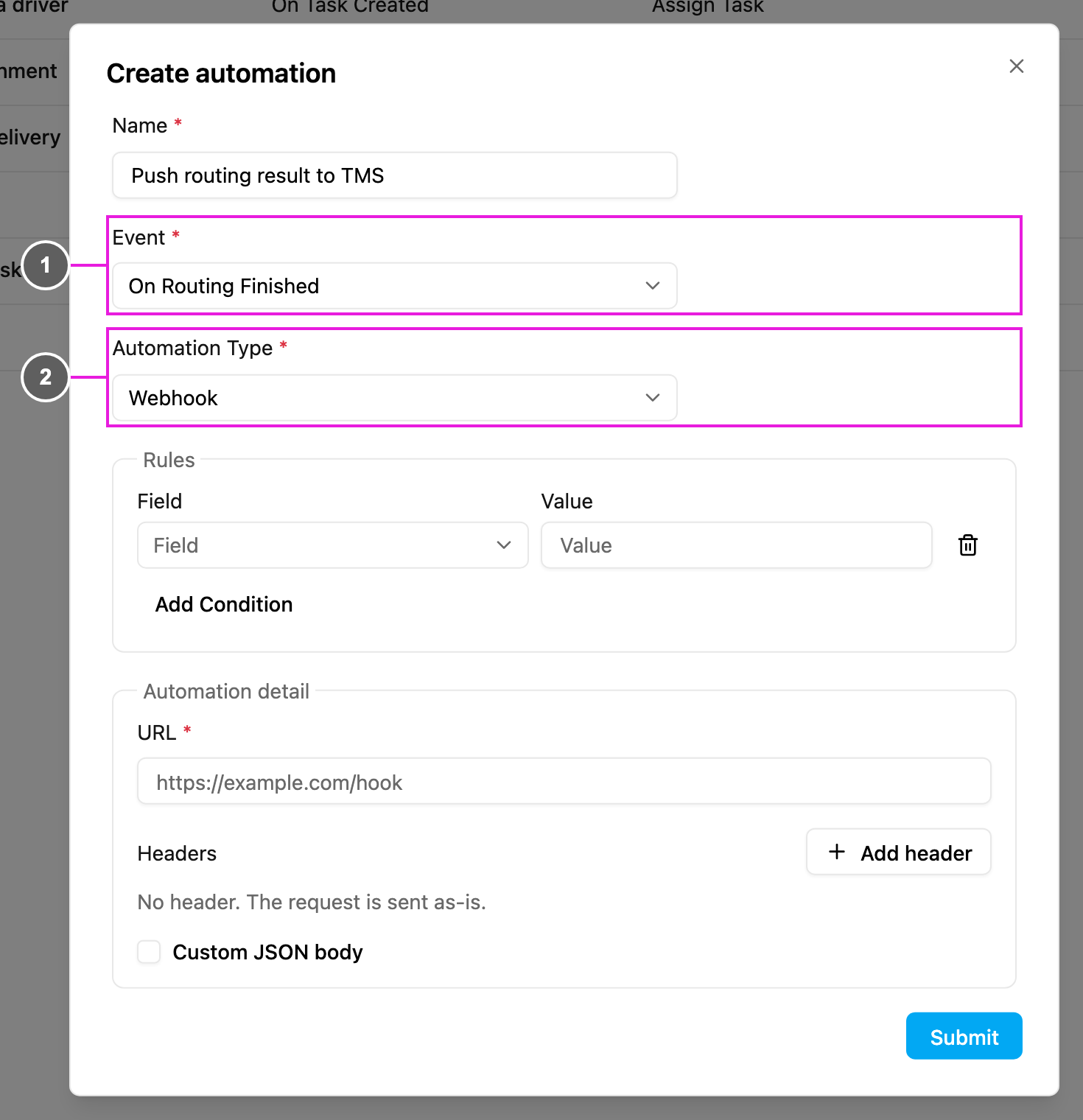
- Event: On Routing Finished.
- Automation Type: Webhook, the only type this event allows.
- URL: where the routing result is sent.
- Headers (optional): click Add header for any header your endpoint needs, with its name and value, for example
Authorization/Bearer your-api-token. - Custom JSON body (optional): reshape the body. See Webhook.
Check it works
Open the automation’s log. Each finished routing appears as a run with its status and the response from your endpoint. Retry failed runs from there.Use cases
- Send optimized routes to a TMS or ERP.
- Tell planners that the routes are ready.
- Start your own dispatch process right after optimization.