

1. Set up the Initial page list
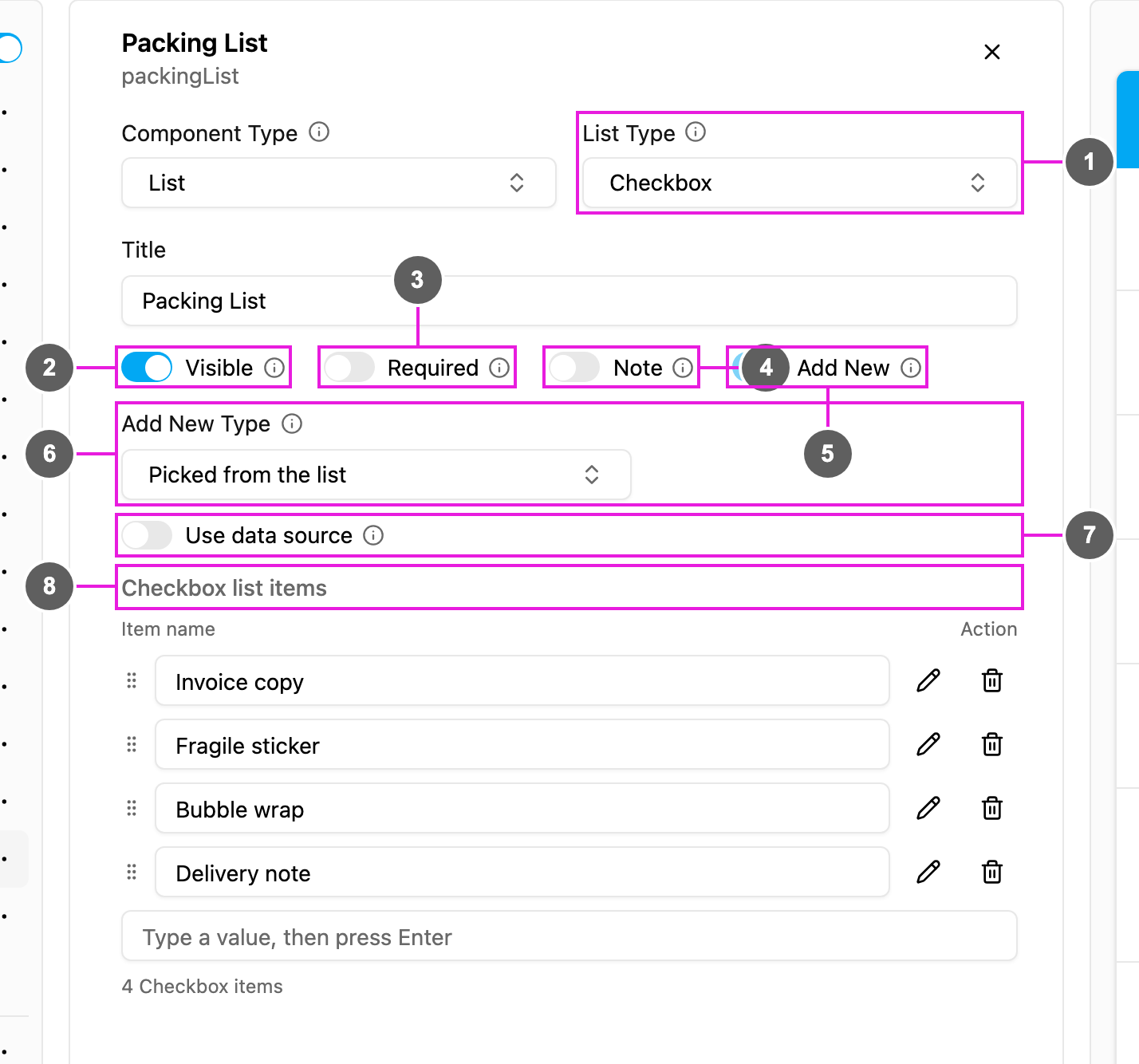
- On the Initial page, click Add component and choose List. Give it a clear Title, such as Packing List.
- Pick the List Type.
- Set Add New Type to Picked from the list and add the master items, such as Invoice copy and Bubble wrap. The header shows how many you have.
- Leave Visible on.
2. Set up the field app page list
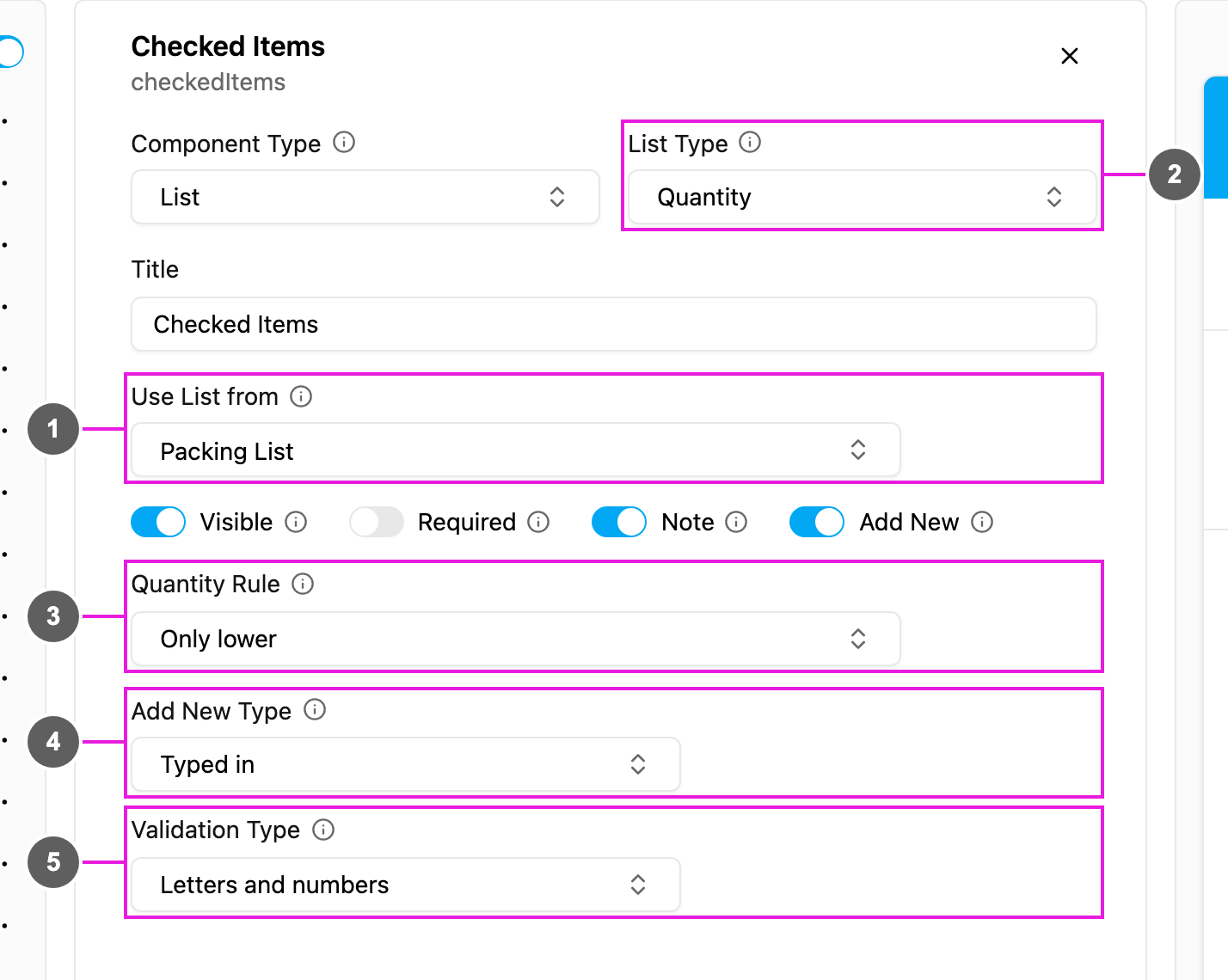
- Add a List on the field app page and give it its own Title.
- Set Use List from to the Initial page list. Its items appear here and can still be edited.
- Pick the List Type the worker uses here, for example Quantity to count.
- Turn Add New on or off. With Typed in, pick a Validation Type.
- Click Save.
3. Check the preview
In the Mobile app preview, go to the field app page and tap Open on the list to see the items as the worker will.4. Create tasks with lists
- Open Activities › Task, click the arrow beside New and choose Bulk.
- Pick the task type with the list and click Download template.
- Fill in the spreadsheet and drag it onto the upload area.
Items are shown on the task in the order of their rows.