

- Context on every page: the customer name and address while the worker completes the task.
- Instructions: a fixed note, such as Check the receiver’s ID before handing over the parcel.
Properties
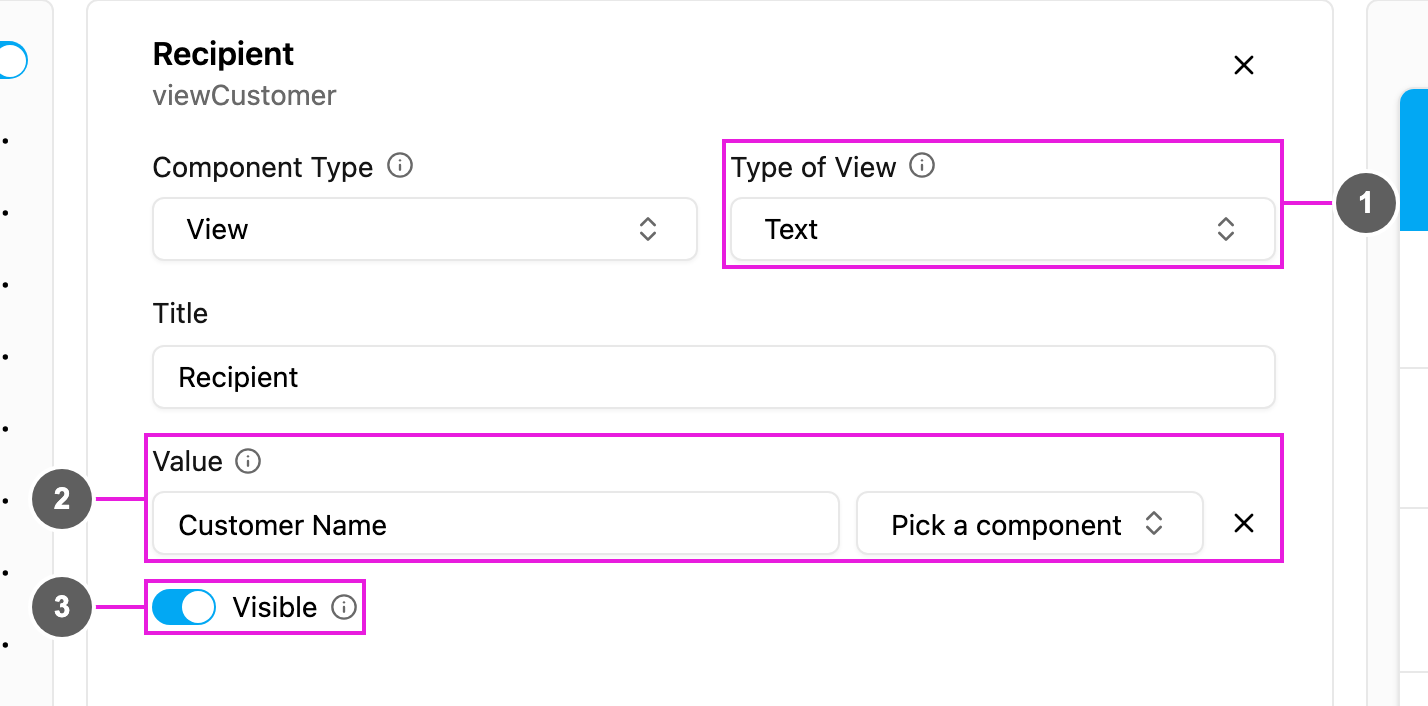
- Type of View: the kind of value shown. Choose the type that matches the component you show; the Value list only offers matching components.
- Value: the value shown. Click Pick a component to show another component’s value, or type a fixed text. A picked component is shown as
$and its ID. - Visible: when off, the view is hidden on the web and the field app.
Types of view
Bill and List views are not available inside a Subpage.
For a Link view on a field app page, Type of Preview shows the linked Image, Video or PDF inside the task. For a video, Skipable lets the worker skip it; otherwise they must watch it to the end.
How to set it up
1
Add the component
Click Add component and choose View.
2
Pick the type
Choose the Type of View that matches the value you want to show.
3
Set the value
Click Pick a component and choose the component to show, or type a fixed text.
4
Name it
Write the Title shown above the value.
On the field app
The view is read-only, so it never stops the worker from finishing a page. Coordinates open the map, phone numbers start a call, links open in the browser and photos open full screen.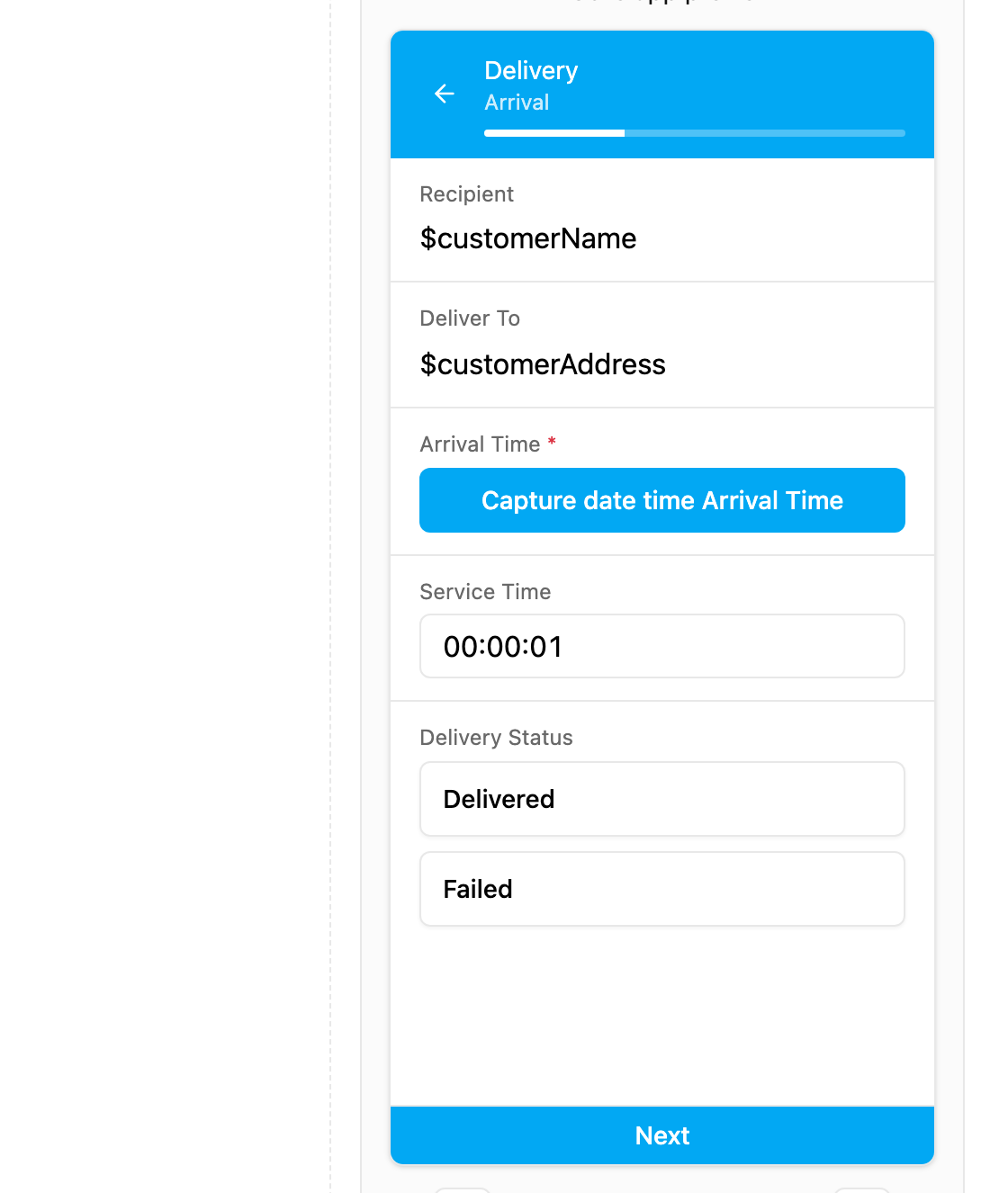
Recipient and Deliver To show the customer name and address from the Initial page. The builder preview shows the reference; the field app shows the value.