

Required permission:
- View automation
- Create automation
Automation detail
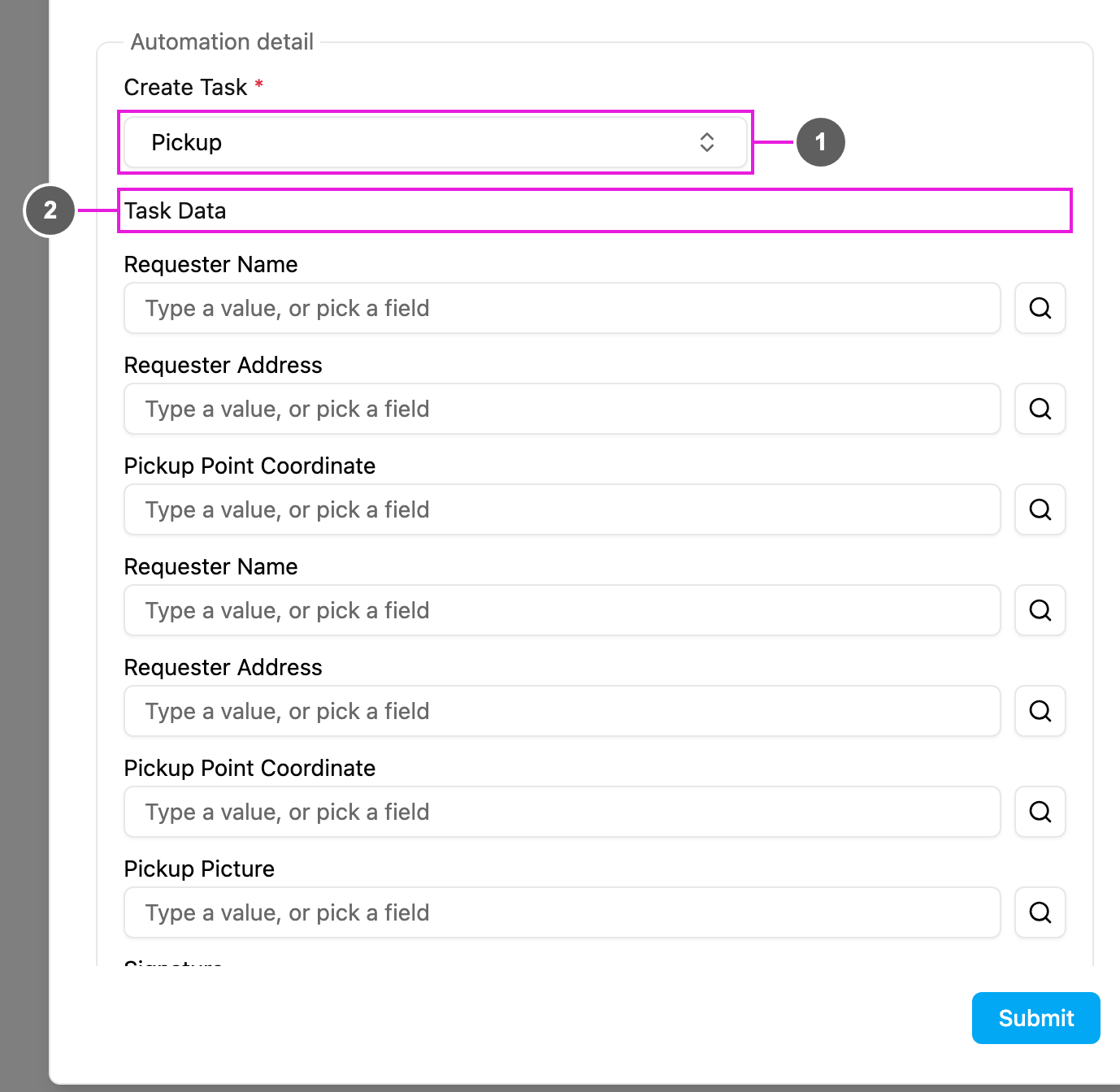
- Create Task: required. The task type of the new task. The trigger’s own task type is not offered, so an automation can’t create the very tasks it watches.
- Task Data: every field of the chosen task type, listed by title. Fill in each field the new task should have. Required fields of the task type must get a value, either fixed or copied.
Filling a field
Each field of Task Data takes a fixed value, a value copied from the trigger, or nothing: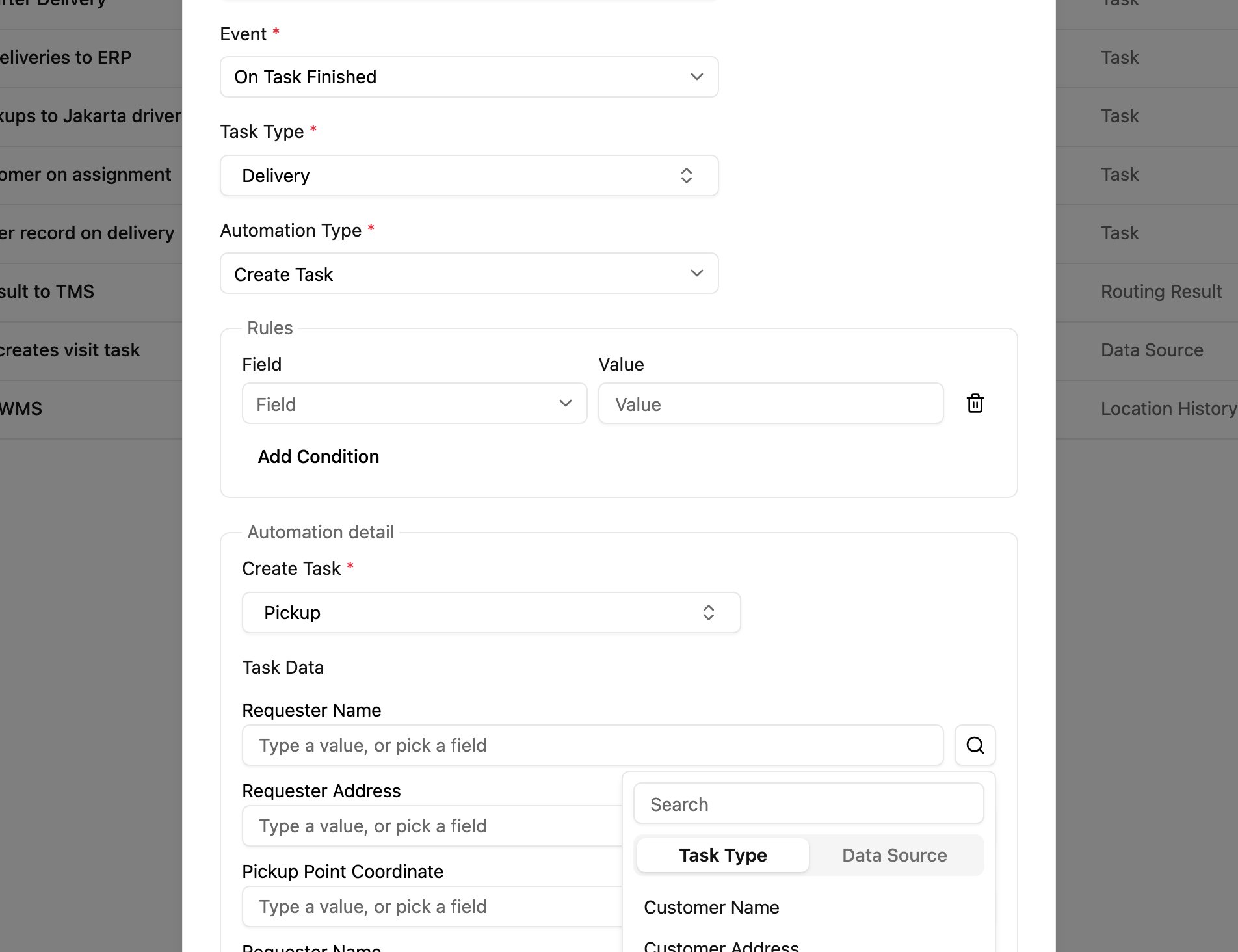
- Fixed value: type in the box (“Type a value, or pick a field”) and press Enter or click Add. Every new task gets this value. Example: Priority › High.
- Copied value: click the search icon next to the box and pick a field. The value of that field on the record that started the automation is copied into the new task when it runs. The list has two tabs:
- Task Type: the fields of the trigger’s task type (or of the trigger data type, for On Data Source Created).
- Data Source: fields of data sources linked to the trigger task type, for example the address of the customer chosen on the task.
- Empty: leave the box empty for optional fields.
How it works
- The event happens (a task is created, assigned or finished, or a record is created).
- The rules, if any, are checked.
- A new task of the Create Task task type is created.
- Its fields are filled with the fixed and copied values.
- The task appears on the Task page, unassigned and ready for assignment.
- The new task is created unassigned. To also assign it, use Create and Assign Task.
- For task events, the new task is created in the same hub as the trigger task.
- The new task is a separate task: it is not linked to the trigger task.
Examples
Pickup after delivery
Quality inspection after service
Follow-up sales from canvassing
Add a rule such as Survey Result = Interested so that only hot leads get a follow-up.
Documentation from a data source
Good practice
- Name automations after the workflow, for example “Create Pickup when Delivery is created”.
- Prefer copied values over typed ones, so the new task matches the trigger.
- Use rules so tasks are created only when needed; automations without rules can create a lot of tasks.
- Avoid loops: Task A creating Task B while Task B creates Task A.
- Test with a sample task and check the result, then watch the log.
Troubleshooting
No task is created.- Check that the automation is Active and its event and task type match the trigger.
- Check that the rules don’t exclude the trigger.
- Make sure every required field of the new task type has a value.