

Advanced Discount is available to internal accounts and is not available on a bill inside a Subpage.
Turning it on
Open the bill and scroll below Items and Add-ons to Advanced Discount.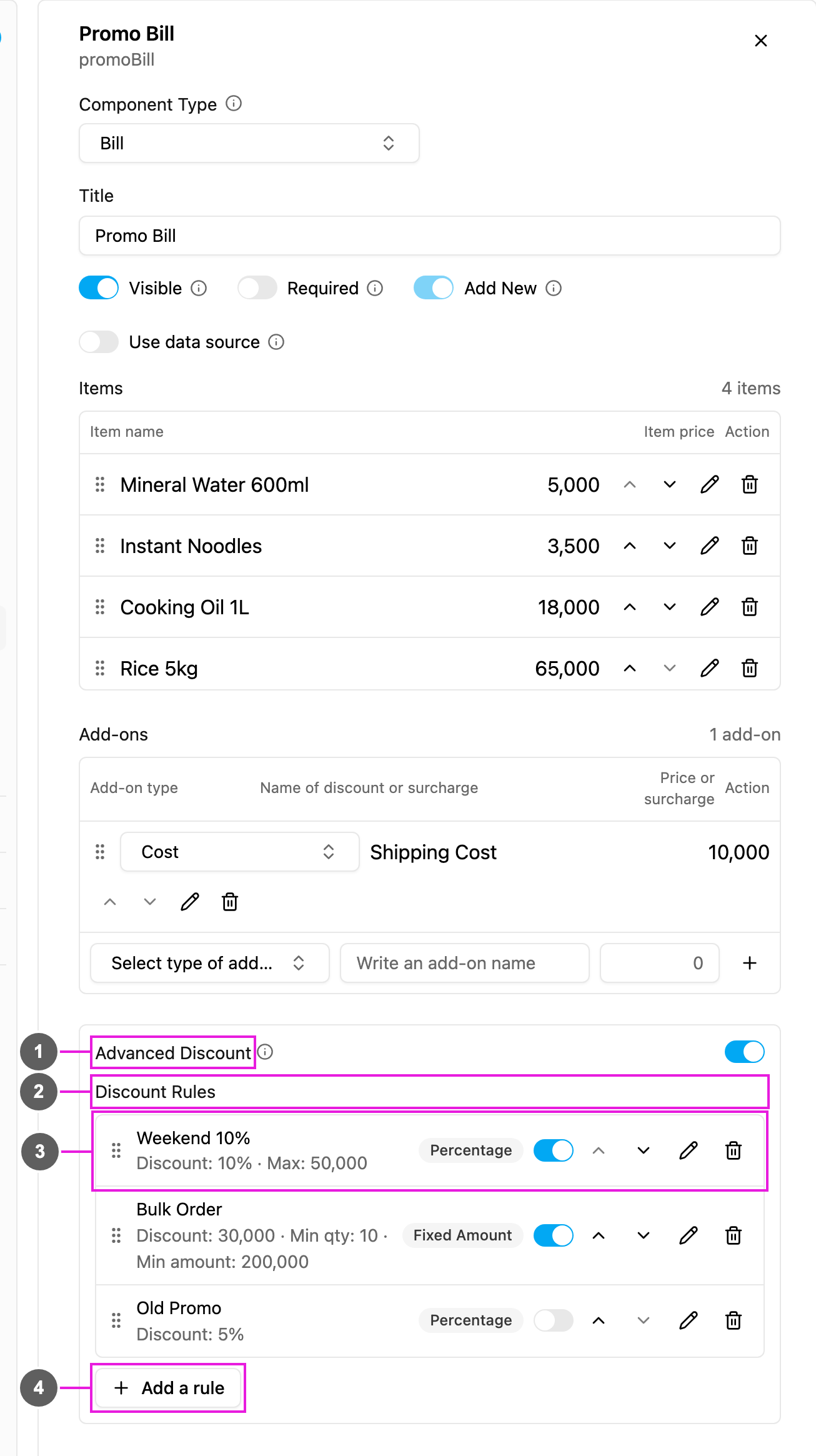
- Advanced Discount: turn it on. The simple Discount add-on type is then no longer offered; only Cost remains. If the bill already has Discount add-ons, you are asked to confirm and they are deleted; Cost add-ons are kept.
- Discount Rules: the rules users can pick from.
- A rule: its name, a summary (for example Discount: 10% · Max: 50,000), its type (Percentage or Fixed Amount) and a switch to turn it on or off. Use the arrows to reorder, the pencil to edit and the bin to delete (with a confirmation).
- Add a rule: create a new rule.
A rule
Click Add a rule, or the pencil on a rule.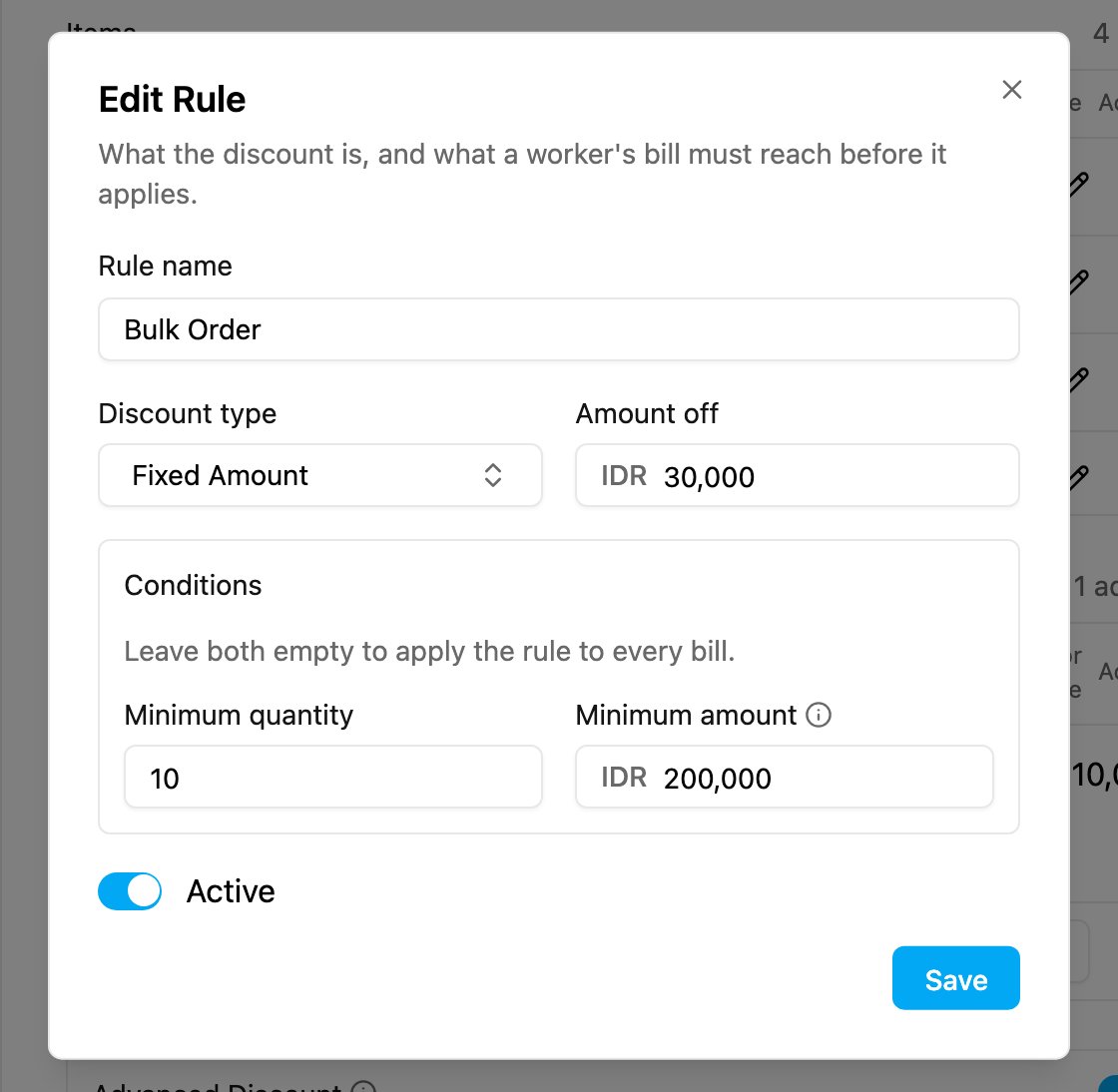
Leave both conditions empty to allow the rule on every bill.
The discount is calculated on the items subtotal only. Costs such as shipping are not part of the base, and do not count toward Minimum amount.
Examples
- Weekend 10%, at most 50,000. Items 200,000 → 10% = 20,000, under the cap. Discount 20,000.
- Same rule, bigger order. Items 600,000 → 10% = 60,000, over the cap. Discount 50,000.
- Bulk Order, 30,000 fixed. Discount 30,000 whatever the size, as long as the conditions are met, and never more than the items subtotal.
Applying a discount
On a task with Advanced Discount, the bill has a Discounts section when at least one rule is active.- No discount is always the starting choice; a discount applies only when the user picks one.
- Each rule shows the amount it would take off. A rule whose conditions are not met is greyed out with a hint such as Min amount 200,000, and cannot be picked.
- The amounts update as quantities change. If the picked rule stops qualifying, the bill goes back to No discount and the user is told.
- The picked discount is saved with the task, and is restored when the task is opened again, as long as the rule still exists, is active and still qualifies.
Bulk create and import
- In Bulk task creation, each bill row has its own discount choice.
- In a spreadsheet import, add a column named
{Bill title}.discountand write the exact rule name in each row. A blank, unknown, inactive or non-qualifying name gives no discount for that row.