

- Customer name: the recipient’s name on a delivery task.
- Reference code: an order number, SKU or other short identifier.
- Short notes: a brief observation from the field.
Properties
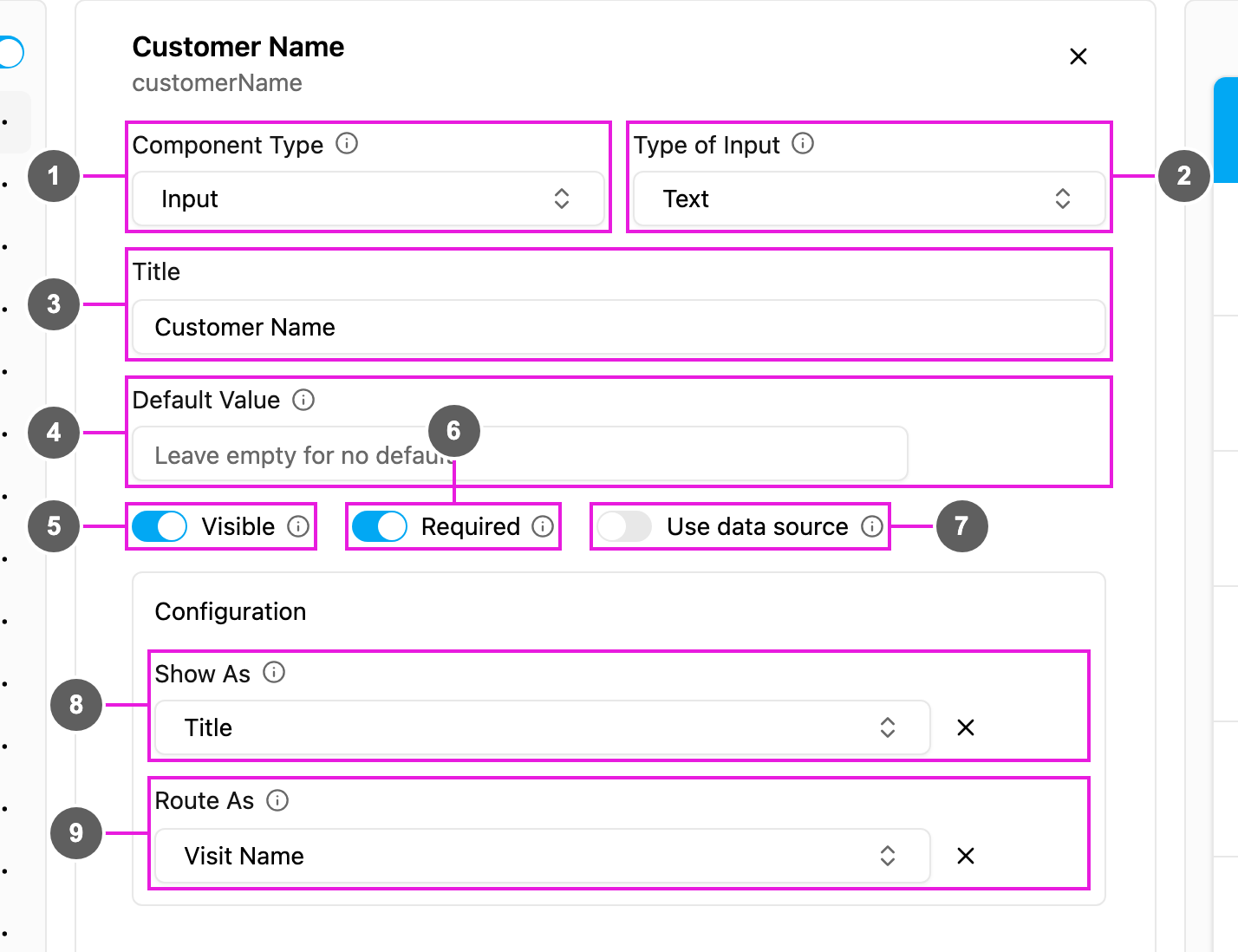
- Component Type: Input.
- Type of Input: Text.
- Title: the label above the field, for example Customer Name.
- Default Value: text filled in for every new task. Leave it empty for no default.
- Visible: when off, the field is hidden on the web and the field app; its value is still kept and exported.
- Required: the task cannot be saved or finished until the field is filled in.
- Use data source: fill the field from your data source records. The field becomes a search box over the data type you pick; choosing a record fills this field and any other components you map to it.
- Show As: show the value in the task list as the task’s Title, Content or Label.
- Route As (Initial page only): pass the value to route planning as the visit’s Visit Name, Address, Tag or Visit Group.
How to set it up
1
Add the component
Click Add component on the page, choose Input, and set Type of Input to Text.
2
Set the basics
Write the Title. Turn Required and Visible on or off, and add a Default Value if you need one.
3
Show it in the task list (optional)
Under Configuration, set Show As to Title, Content or Label.
4
Use it for route planning (optional)
On the Initial page, set Route As to Visit Name, Address, Tag or Visit Group. When the task becomes a visit, that visit property is filled from this field.
5
Fill it from a data source (optional)
Turn on Use data source to let the user pick a record instead of typing.
On the field app
The field shows a single-line text box with Write here as the placeholder. The worker types freely, or finds the field already filled from task creation or from the Default Value, and can edit it before finishing the page.Related
- Number: numbers only.
- Address: a multi-line address.
- Input overview